3.1 Create & Edit Campaigns
Campaigns are the engine of your LinkedIn automation in ReactIn. Once set up, they run your messaging flow on autopilot — across one or multiple LinkedIn accounts — based on a selected SmartList.
Written By Theo Remola
Last updated Over 1 year ago
⚙️ How to create a campaign (step by step)
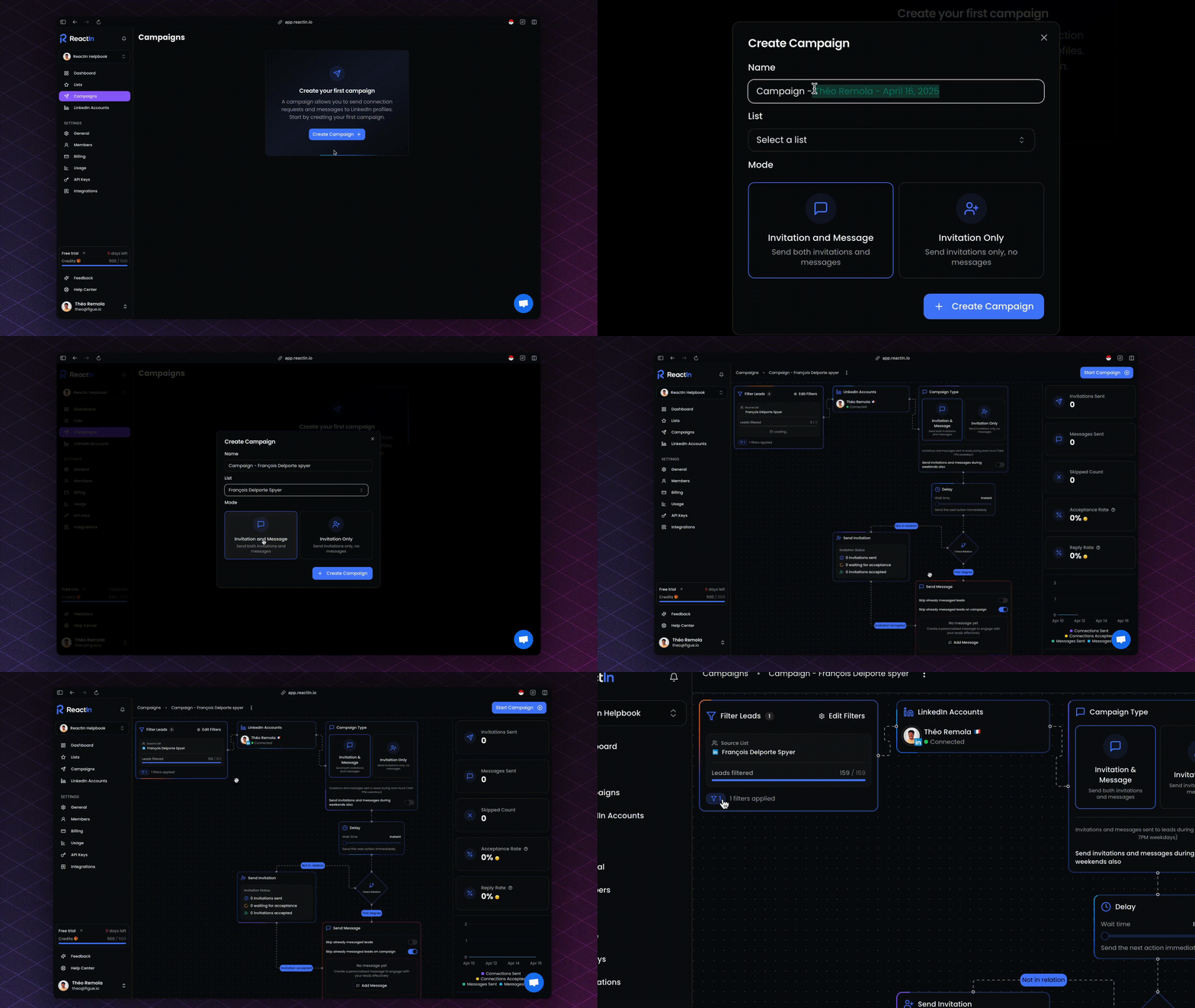
Go to the Campaigns tab
Click “New Campaign”
Give your campaign a name
Choose the SmartList you want to target
Choose your campaign type:
Invite only
Invite + DM
(Optional) Apply filters to segment or sample the SmartList (e.g. title contains “Growth”)
Select the LinkedIn accounts that will distribute the workload
Write your message steps and set delays between each one
Enable optional skips:
✅ Skip leads already messaged on LinkedIn
✅ Skip leads already messaged in another ReactIn campaign
✏️ Editing a campaign
You can always edit your campaign. Do not forget to save your work before leaving the page!
🎯 All edits are applied in real time and affect queued leads immediately after saving.
💡 Pro tip: Use filters to run micro-campaigns on precise segments — like “CTOs in SaaS” or “Growth leads in UK” — before scaling across the full list.
Ready to move on?
👉 Next Step: Smart Filters for ICP-Based Segmentation →