Connect ReactIn to Claude (MCP)
Written By François Delporte
Last updated 3 months ago
ReactIn's MCP connector lets you drive your LinkedIn campaigns, lists, and leads directly from Claude, in natural language. You ask, Claude executes through your ReactIn account: create a lookalike list, launch a campaign, analyze your outreach metrics, and more.
This page explains how to set it up in just a few minutes, with no code.
Prerequisites
An active ReactIn account with at least one organization
Access to Claude on claude.ai, the desktop app (Mac/Windows), or the mobile app (iOS/Android)
ReactIn's MCP server URL:
https://app.reactin.io/mcp
Custom connectors are a beta feature on Claude's side. The exact location of menus may change slightly.
Installing on Claude (web and desktop)
Step 1: Open Connectors
In Claude, open the Customize panel from the sidebar, then select the Connectors tab.
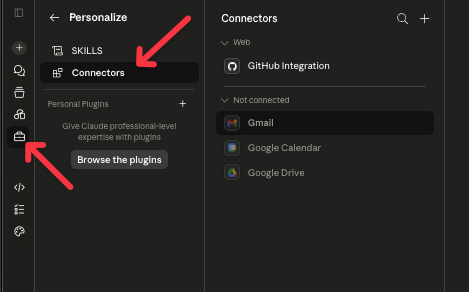
Step 2: Add a custom connector
In the top right of the connector list, click the + button.
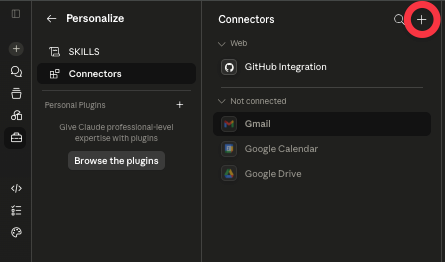
Step 3: Enter ReactIn's details
In the Add custom connector window, enter:
Name: ReactIn
URL:
https://app.reactin.io/mcp
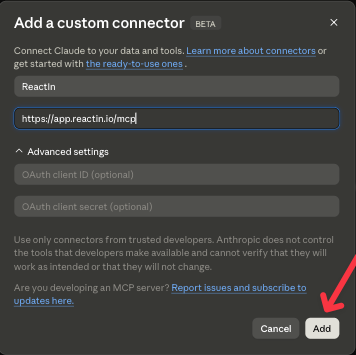
NB: The OAuth Client ID and OAuth Client Secret fields under "Advanced settings" are optional: leave them empty. Authentication happens automatically during the connection step.
Step 4: Connect
ReactIn now appears in the list, under the Not connected section. Select it, then click Connect.
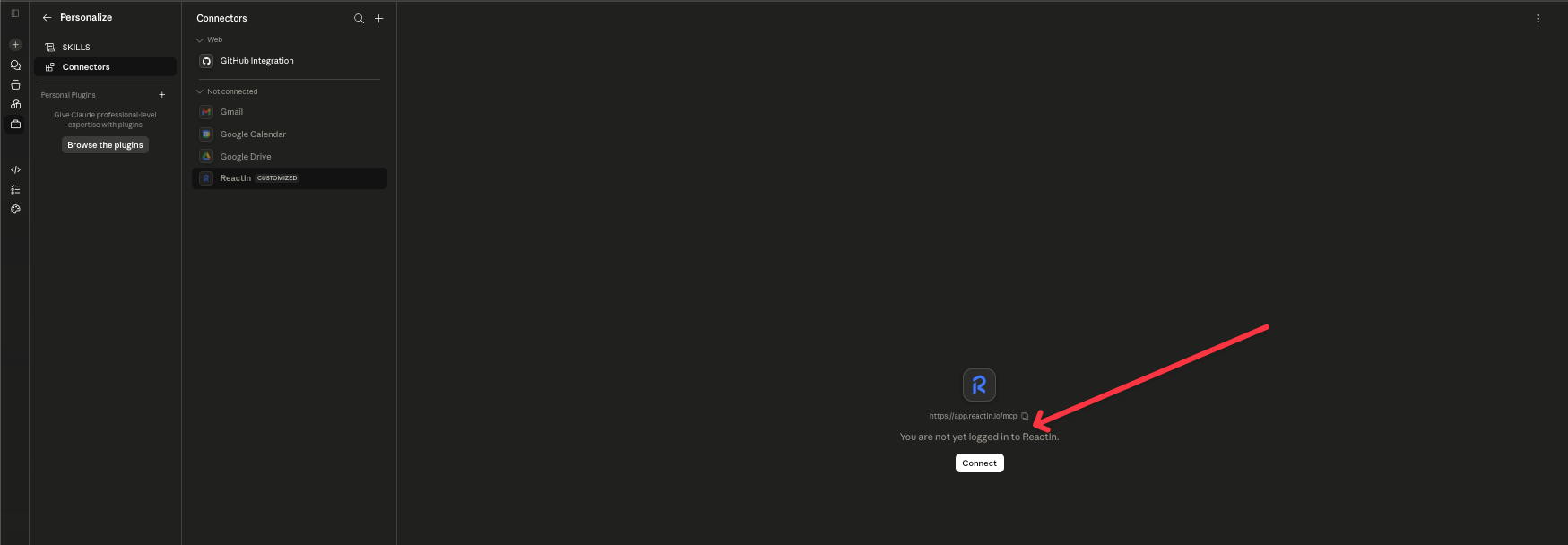
Step 5: Authorize access
A ReactIn window opens: Authorize access. Make sure Claude is requesting access to the correct organization (for example, Figue), then click Authorize.
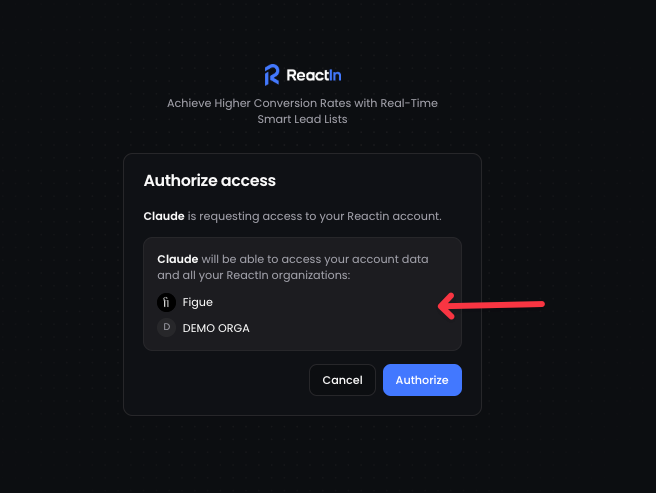
That's it. ReactIn moves to the active connectors section, and its tools are available in your conversations.
Installing on Claude mobile (iOS / Android)
The process is identical, with navigation adapted for mobile:
Open the menu (icon in the top left), then Settings → Connectors.
Tap Add connector (or the + icon).
Enter the name ReactIn and the URL
https://app.reactin.io/mcp, then confirm.Tap Connect, then Authorize on the ReactIn screen.
The OAuth authorization opens in the built-in browser. Once confirmed, return to the Claude app: the connector is active.
Verify that everything works
Ask Claude a simple question to confirm the connection, for example:
"List my ReactIn organizations."
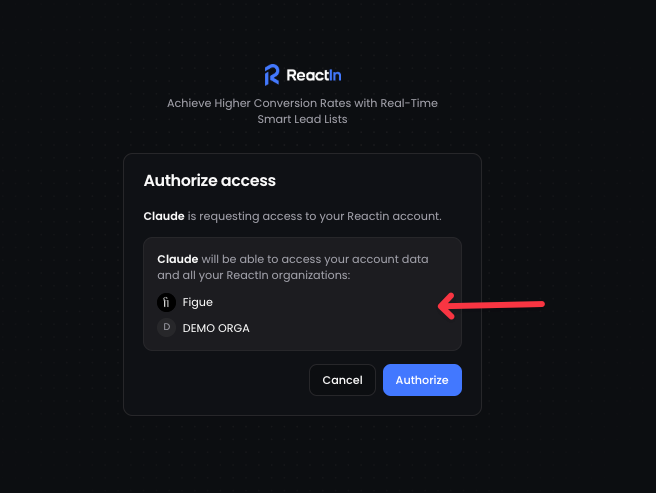
If Claude returns to your organization, the connector is up and running.
Usage examples
Once connected, you can drive ReactIn in natural language from Claude.
Create a lookalike list
"Create a lookalike list based on this Profile: [LinkedIn profile URL]."
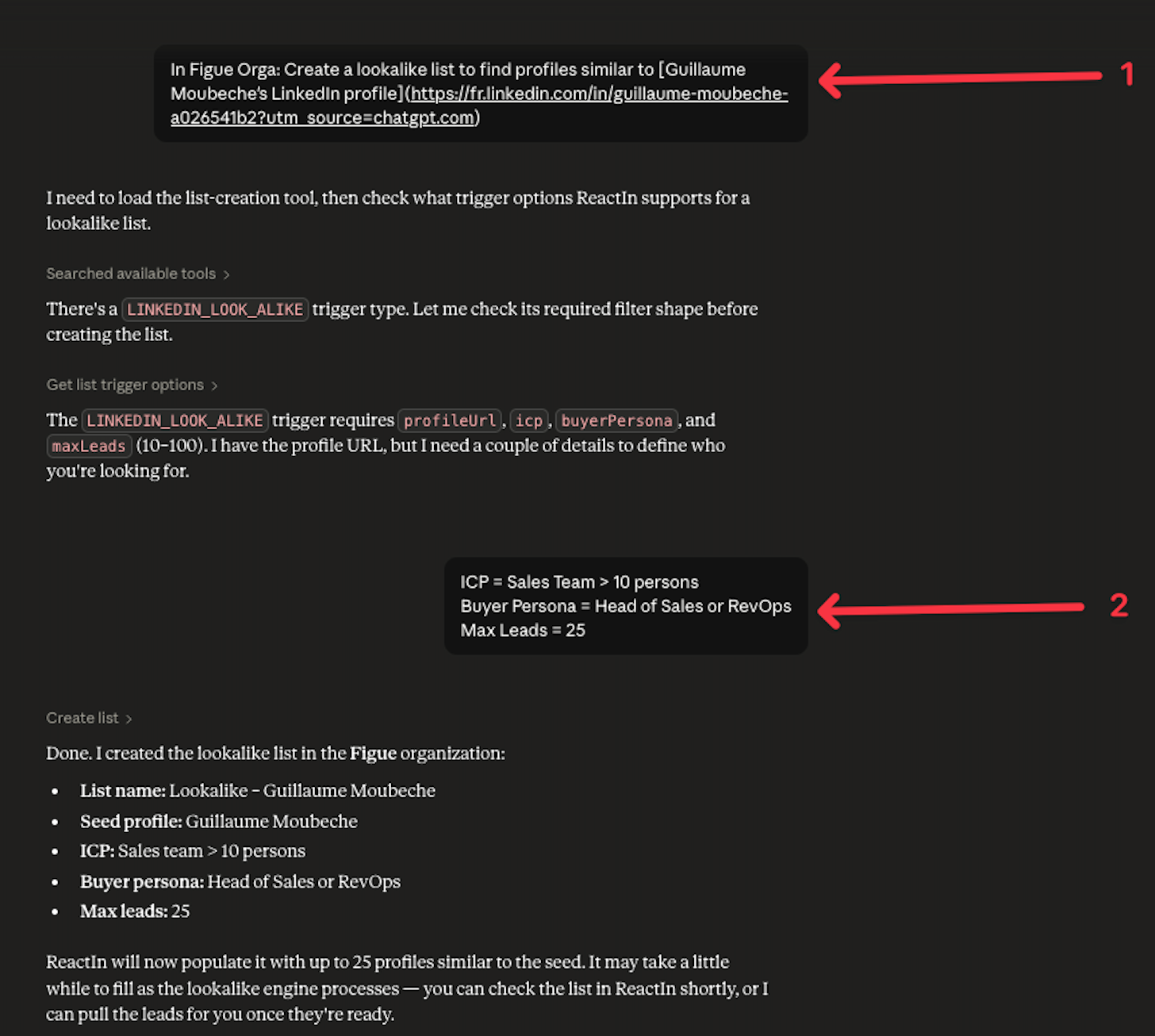
Other examples
"Show me the active campaigns and their reply rate this week."
"Add these 15 profiles to my SaaS Prospects list."
"Which job titles replied the most this month?"
Security and best practices
Only add connectors from developers you trust. Anthropic does not control third-party tools and cannot guarantee their behavior.
OAuth authorization gives Claude access to your data and to all your ReactIn organizations. Check the scope before confirming.
You can disconnect ReactIn at any time from the Connectors tab (connector menu → Disconnect).
Troubleshooting
Need help?
If the connection fails despite these steps, contact ReactIn support (hello@reactin.io) with a screenshot of the error displayed.