9.3 Account Deletion & Recovery
We believe in full transparency when it comes to your data. Here’s how to manage or delete your account.
Written By Theo Remola
Last updated Over 1 year ago
🔌 Disconnect your LinkedIn account
If you want to unlink a LinkedIn profile from ReactIn:
Go to the "LinkedIn Accounts" section in your dashboard
Find the LinkedIn account you want to disconnect
Click on the three dots (
⋮) in the top-right corner of the account cardSelect “Disconnect”
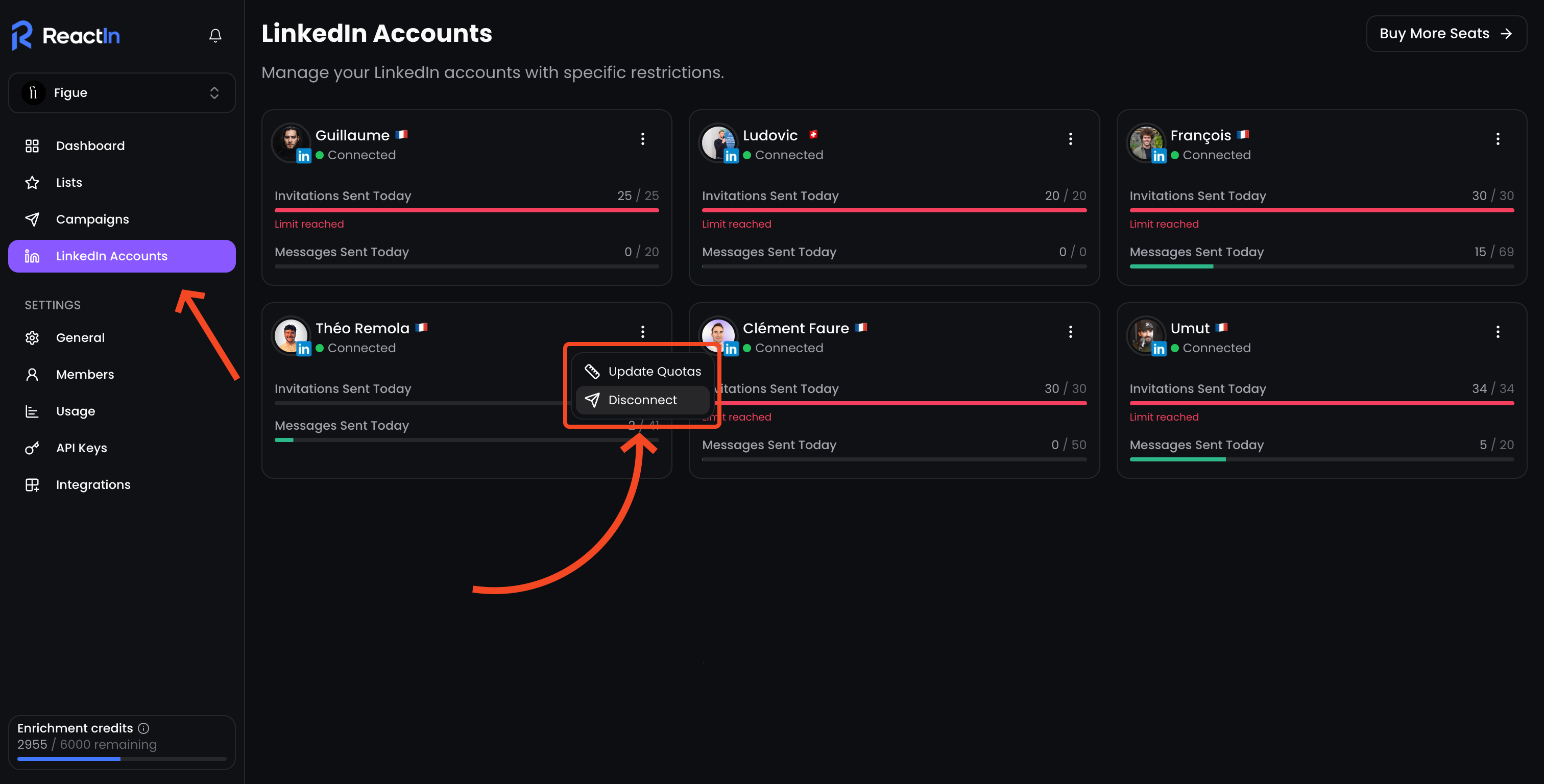
🔄 You can reconnect or change accounts later as needed.
🏢 Delete your organization
If you're the admin and want to permanently delete your entire ReactIn workspace (SmartLists, campaigns, data, team, etc.), here’s how:
Go to Settings > General
Scroll down to the section “Delete organization”
Click the button and follow the confirmation steps
⚠️ This action is irreversible. Once confirmed, all data linked to your organization will be deleted.
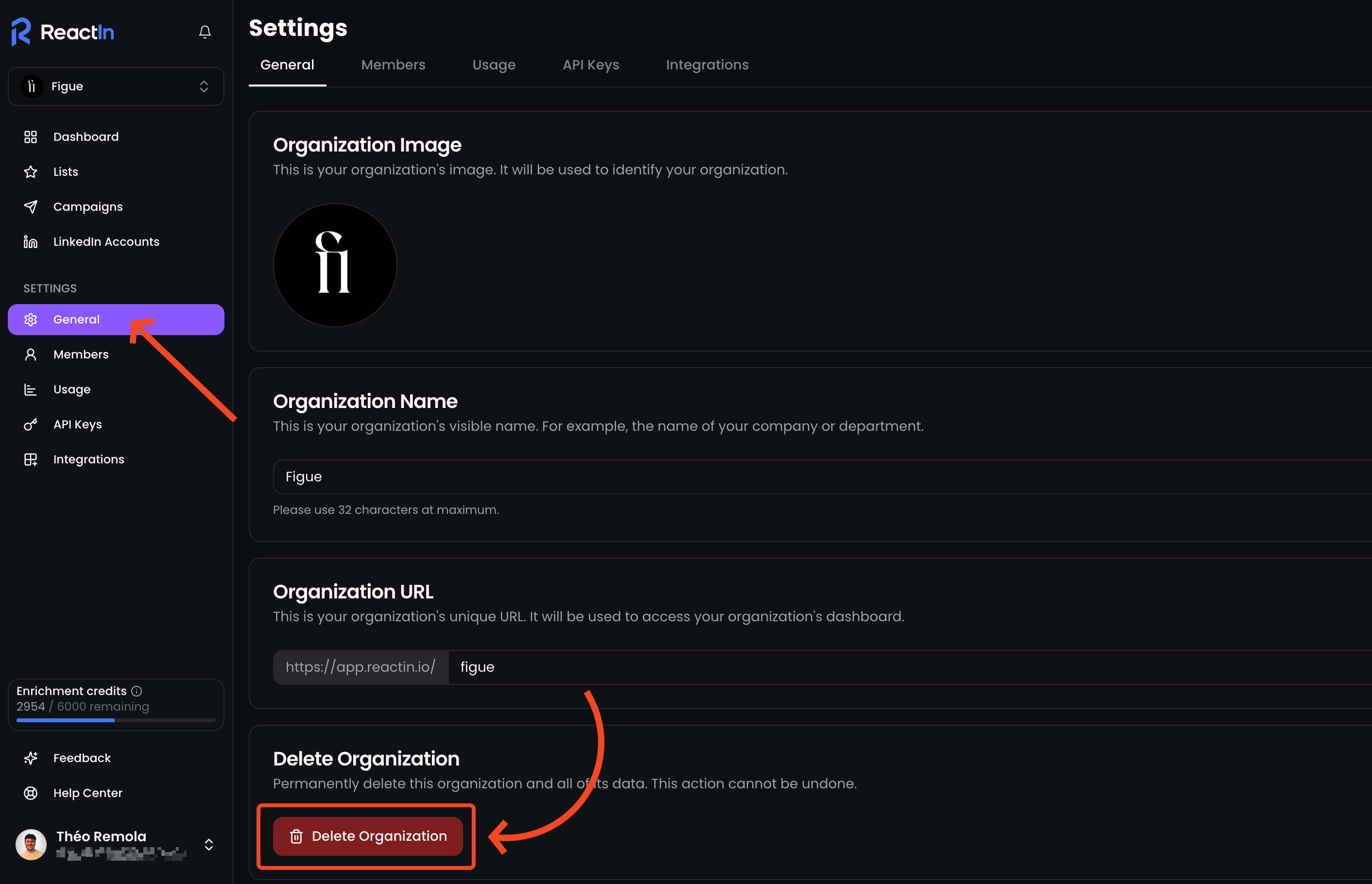
⏳ A backup may be kept for up to 30 days in case of accidental deletion — but only for restoration requests made via support.
♻️ Recover a deleted user or org
If something was deleted by mistake, contact our team as soon as possible:
Email: support@reactin.io
Recovery is not guaranteed after 30 days, but we’ll do our best
🧠 Reminder: ReactIn is GDPR-compliant. Your data is never sold, exposed, or reused.
💡 Pro tip: Before deleting an organization, double-check that you’ve exported any critical lead or campaign data—this action can’t be undone.