3.5 Message Variables & Fallbacks
ReactIn makes it easy to write personalized LinkedIn messages at scale — using dynamic variables and fallbacks that adapt to each lead's data. This ensures your campaigns stay relevant and human — without needing to rewrite messages one by one.
Written By Theo Remola
Last updated Over 1 year ago
📦 Use dynamic variables
When writing a message, you can insert variables like:
First name
Last name
Company name
Job title
Any custom field from your SmartList
ReactIn will automatically replace these with the correct data for each lead when sending.
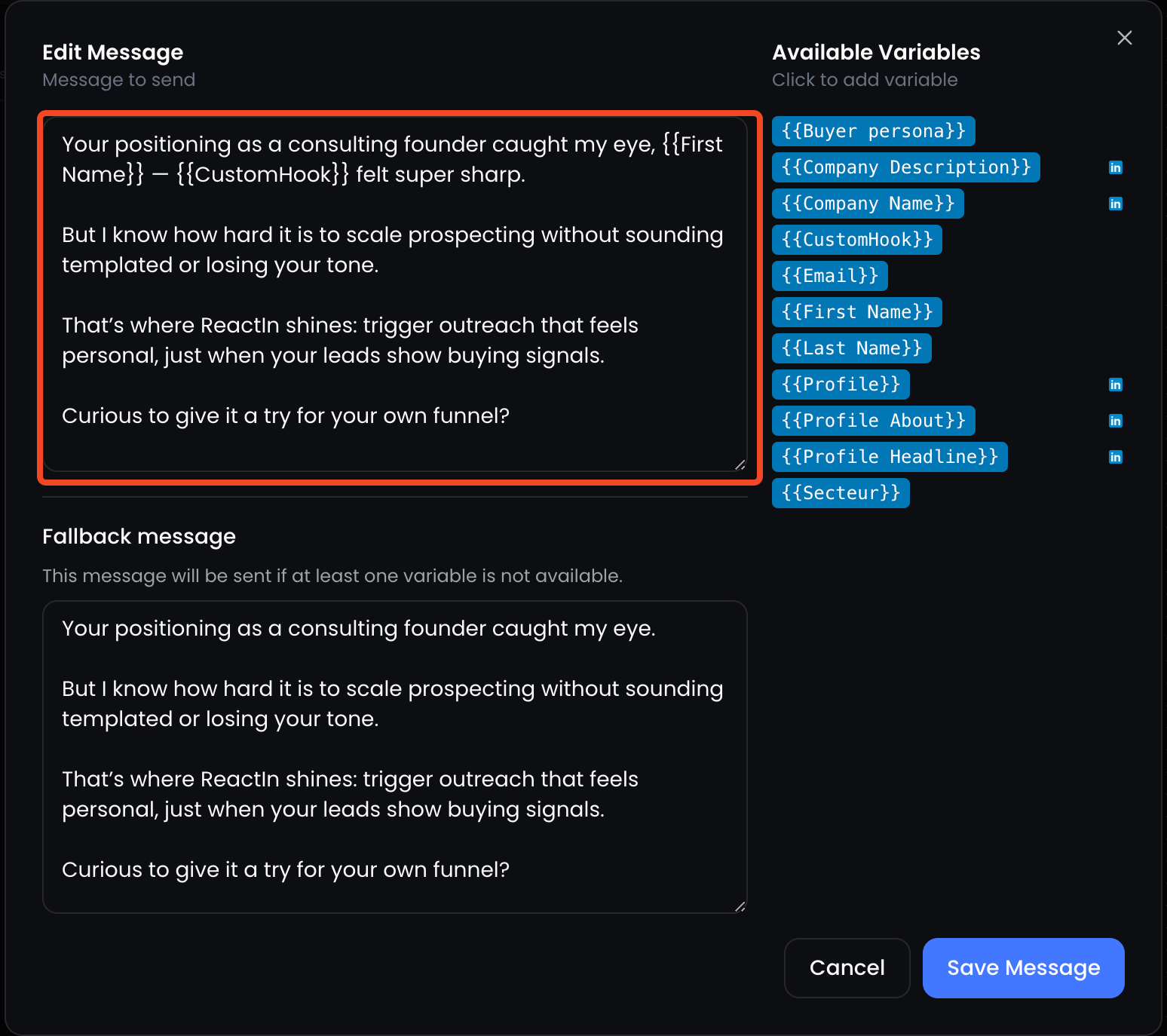
🧠 All imported or enriched fields from your SmartList can be used dynamically in messages.
🧱 Add fallbacks to avoid blanks
If a variable is missing (for example, a company name), you can define a fallback — a default phrase that will appear instead.
This ensures your message always flows naturally, even when some data is incomplete.

📌 Fallbacks help you avoid awkward gaps like "How’s everything at ?" and keep things smooth.
🔍 Preview messages before launching
Before activating your campaign, you can preview how your message will look for each lead:
Go to the campaign step
Click Preview
Scroll through different leads to see how variables render in context
✅ This lets you catch missing values or formatting issues early — before anything is sent.
💡 Pro tip: Use short variables early in the sentence and keep your message readable even if a fallback is applied.
Ready to move on?
👉 Next Step: Configure Delay Rules Between Messages →