2.5 CSV Import/Export
Manually upload or download leads with full flexibility. Whether you want to bring in existing contacts or extract enriched leads, CSV tools give you total control.
Written By François Delporte
Last updated Over 1 year ago
Why Use CSV Import/Export
Not all leads come from LinkedIn or integrations—and sometimes you need to enrich and segment large lists quickly. CSV import/export helps you bridge your existing workflows with ReactIn’s targeting power.
Import Leads into a SmartList
Instantly upload your own list of leads into ReactIn and enrich them using SmartColumns (LinkedIn + AI).
File Requirements
Make sure your CSV follows these formatting rules:
✅ File must be in
.csvformat✅ The first row must include column headers
✅ One column must contain either
emailorlinkedinUrl✅ Optional columns:
firstName,lastName,customVariable1,customVariable2, etc.
For best results:
Include first name, last name, email, and LinkedIn URL in your CSV. This maximizes enrichment quality and personalization later.
Use Case Example:
Upload a CSV from your CRM, enrich with profile headlines, and launch a campaign targeting only Founders or VPs.
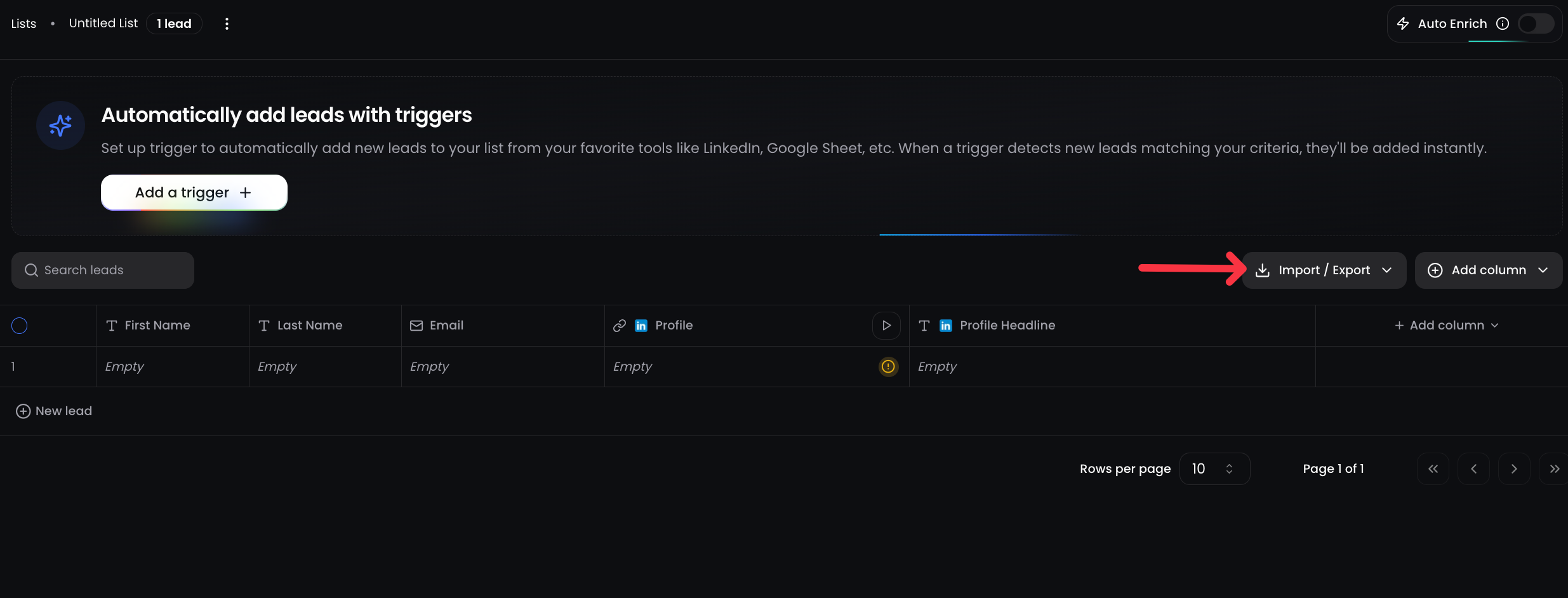
Export Leads from a SmartList
Need to sync with your CRM or reporting tools? Just hit Export CSV and get all your SmartList data, including:
all the lead data
Enriched LinkedIn and/or AI columns, if they exist
Use Case Example:
Export all leads you interact with your competitor LinkedIn posts
💡 Pro tip: Combine CSV import with SmartColumns and filters to transform static lists into personalized LinkedIn campaigns in minutes.
Ready to move on?
👉 Next: 2.6 SmartList Table →