4.1 API Keys & List ID
ReactIn’s API requires a valid API key and a list ID (also called SmartList ID) to authenticate and route your requests.
Written By Theo Remola
Last updated Over 1 year ago
To use the ReactIn API (whether to add leads or extract enriched data), you need:
A SmartList of type
ReactIn APIThe API code snippet auto-generated by ReactIn
Your organization ID and the associated list ID
🔑 How to get your API key (no need to request it)
ReactIn automatically generates your API key when you create a special SmartList.
✅ Steps:
Go to your ReactIn dashboard
Create a new SmartList
In the list type dropdown, select “ReactIn API”
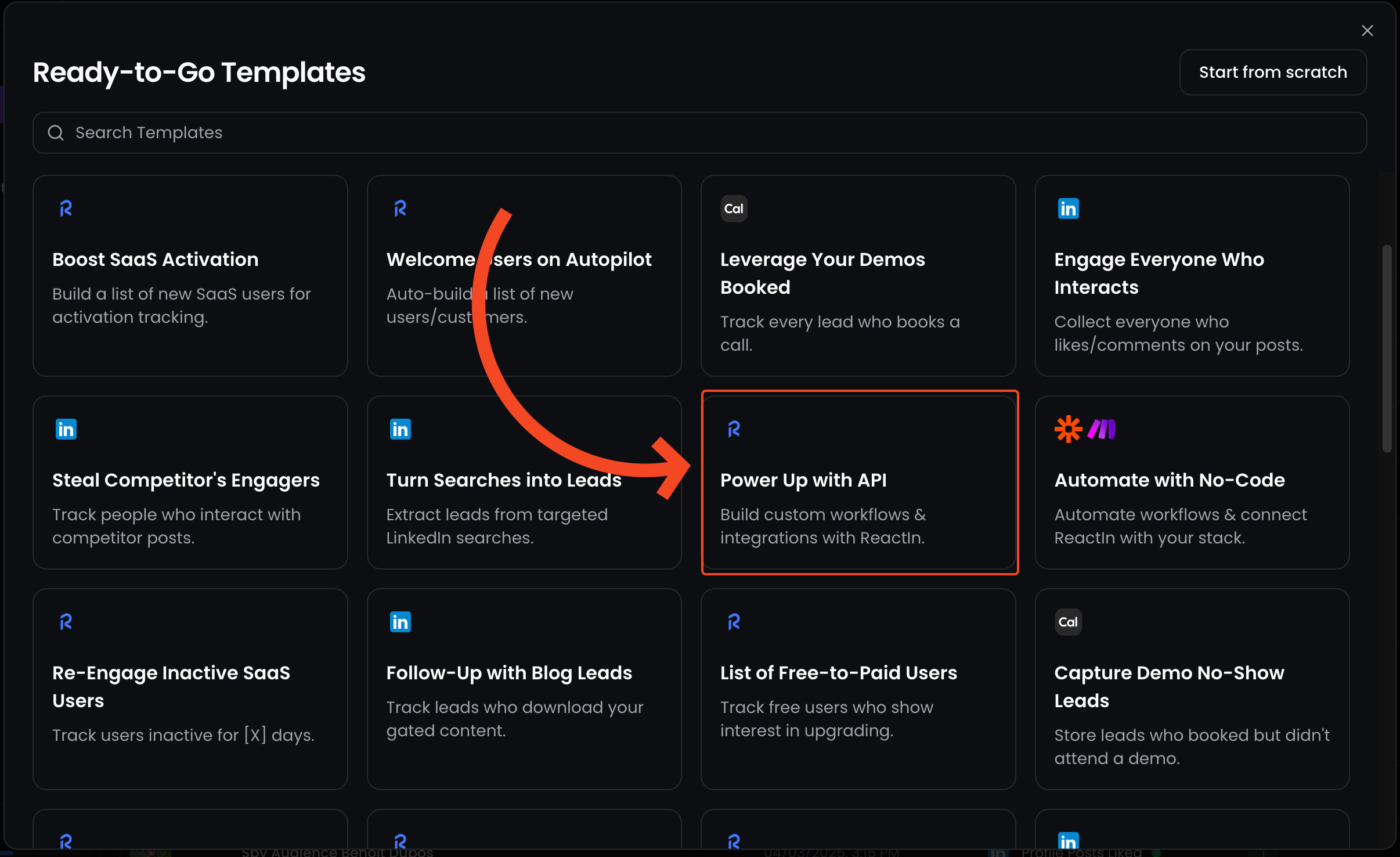
Once the list is created, a code block will appear — it includes:
Your API key (already injected in the
Authorizationheader)
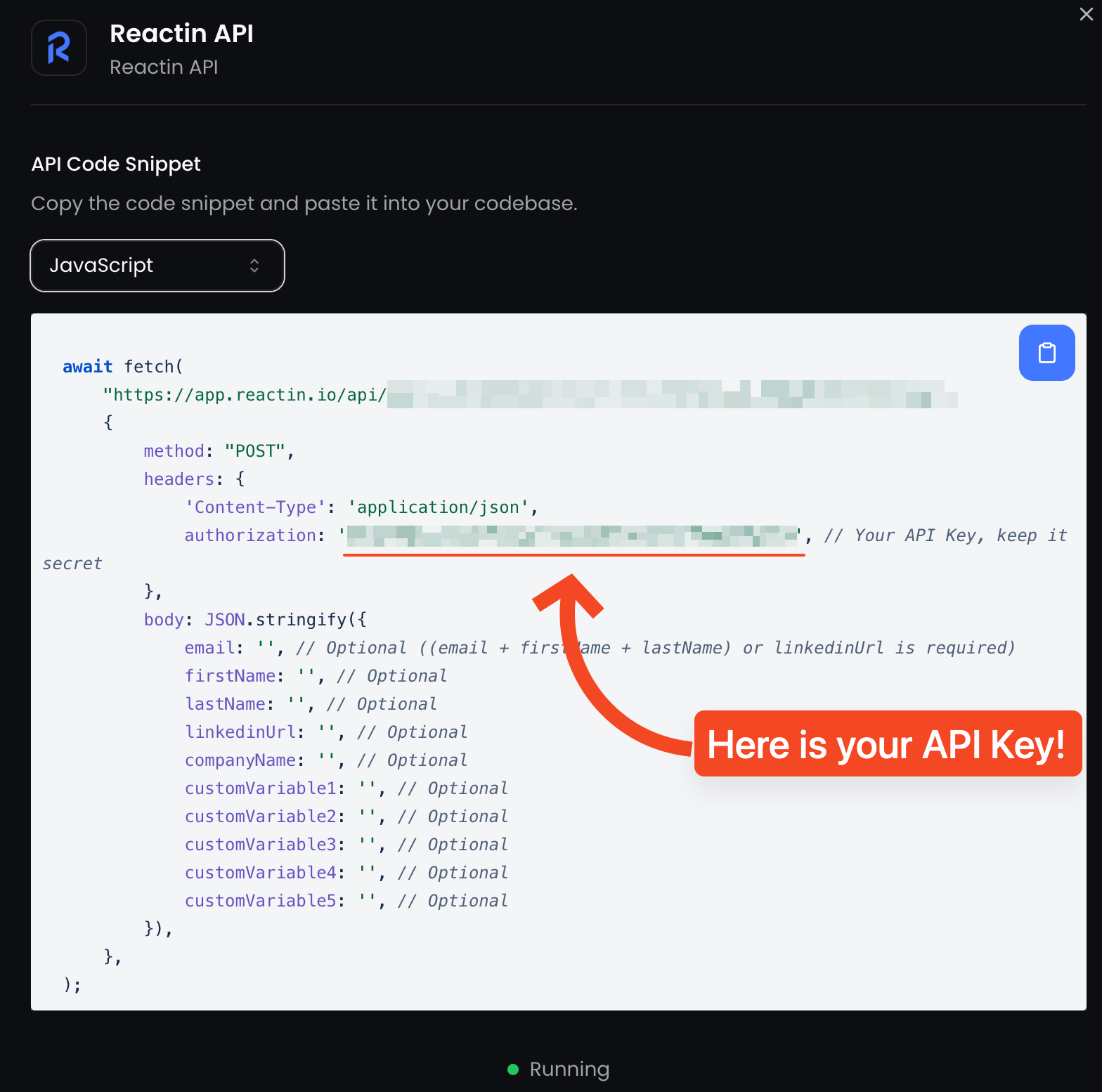
The correct endpoint, including your
organizationIdandlistId
⚠️ Treat this key as a secret. Never expose it in frontend code or public repos.
📋 How to get your Organization ID & List ID
Each organization has a unique ID. You can get it the same way you did for the API Key:
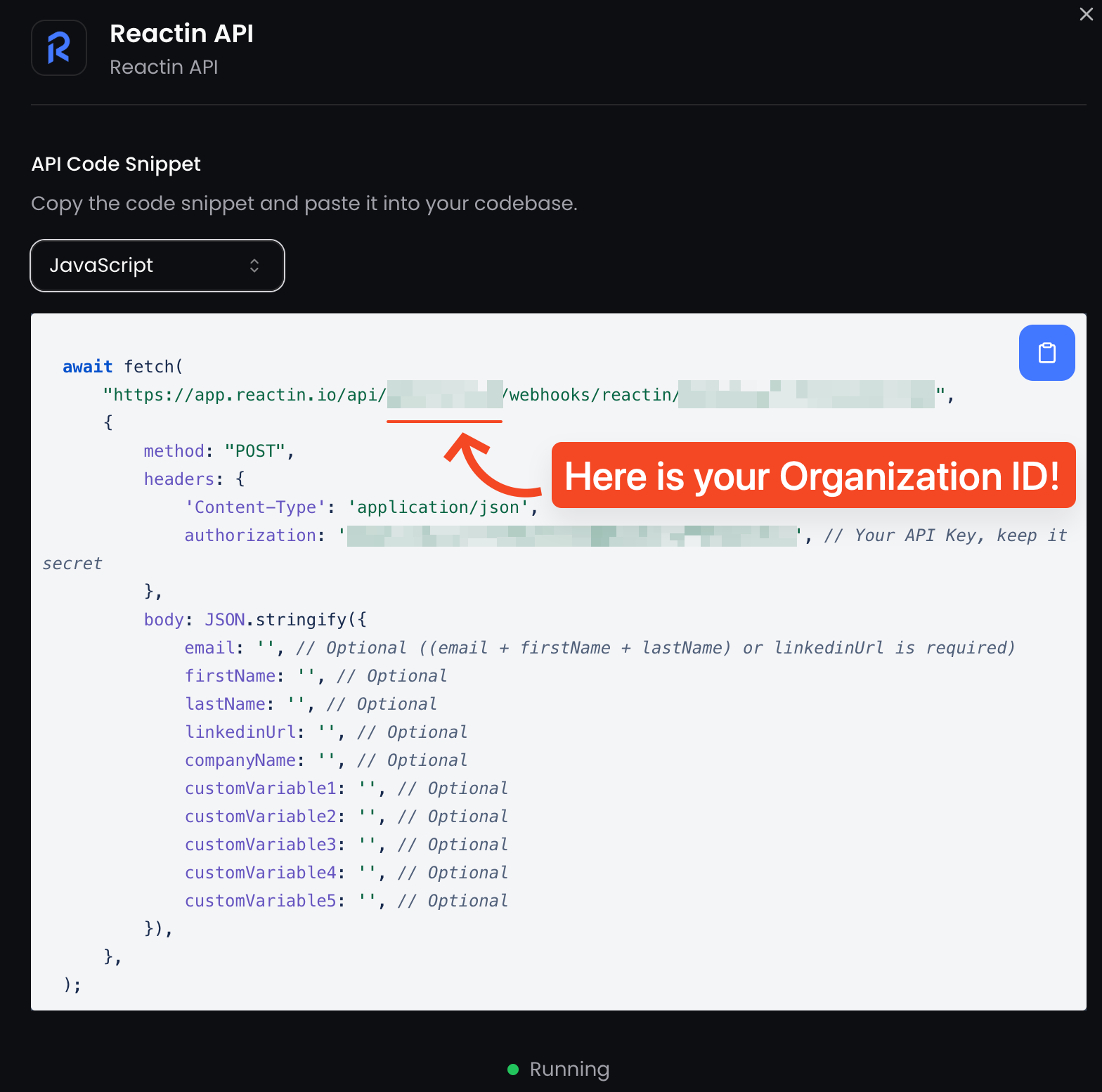
There are two ways to retrieve your listId:
It’s embedded directly in the URL of your SmartList:
https://app.reactin.io/[OrganizationName]/lists/[listId]It also appears in the endpoint URL provided in the code snippet when you create the ReactIn API list:
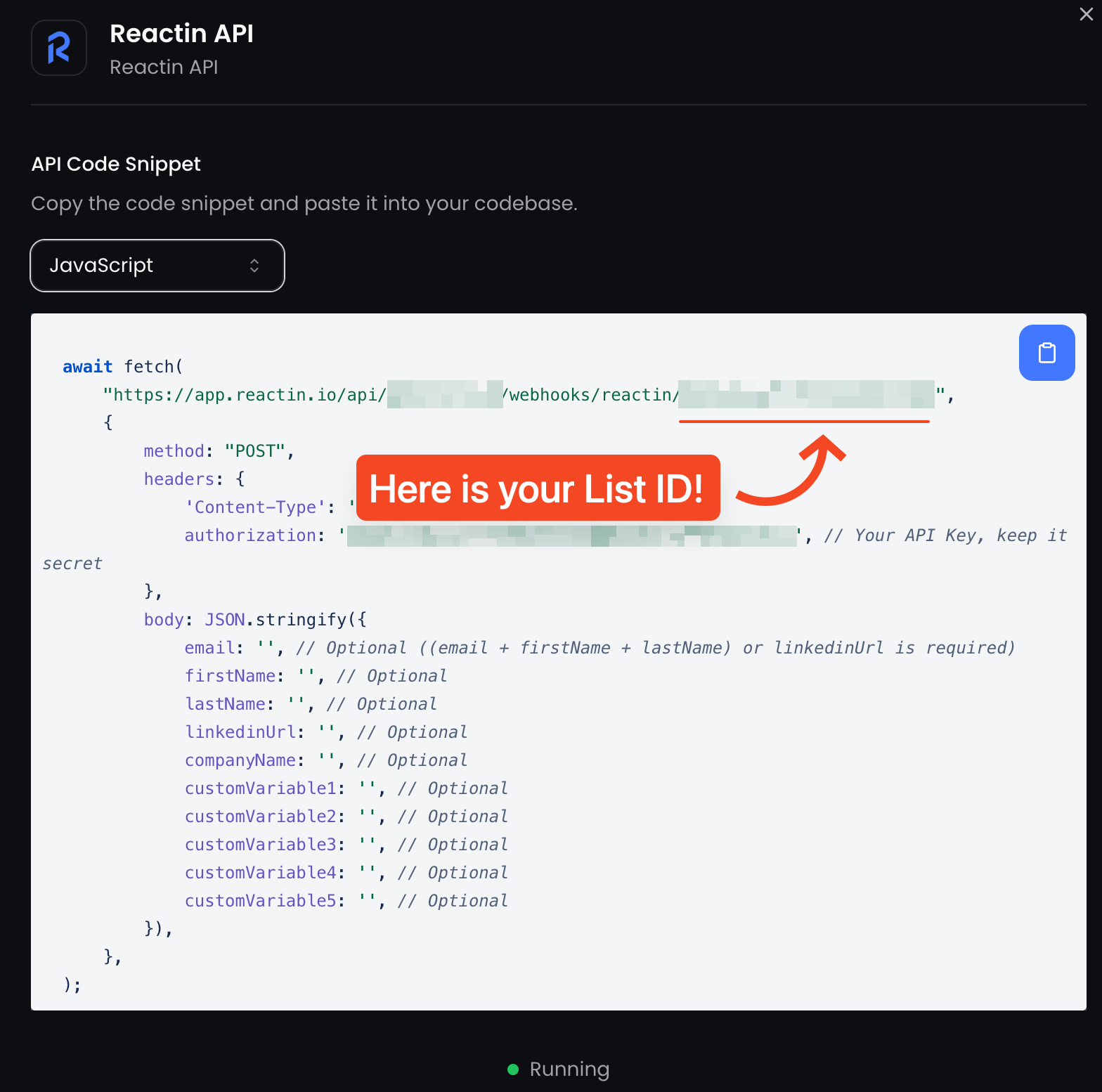
You’ll need this
listIdto push or extract leads via the API.
✅ Your API is ready to use
As soon as your ReactIn API SmartList is created, you’re ready to:
Push leads to that list via
POSTExtract enriched leads from it via
GET
No manual setup, no API key request needed.
💡 Pro tip: Securely store your API key and regularly rotate it—this keeps your integration safe and reliable.
Ready to move on?
👉 Next Step: Add Leads via API →